


How do I set up Apple CarPlay and Android Auto in a 2026 Outlander?
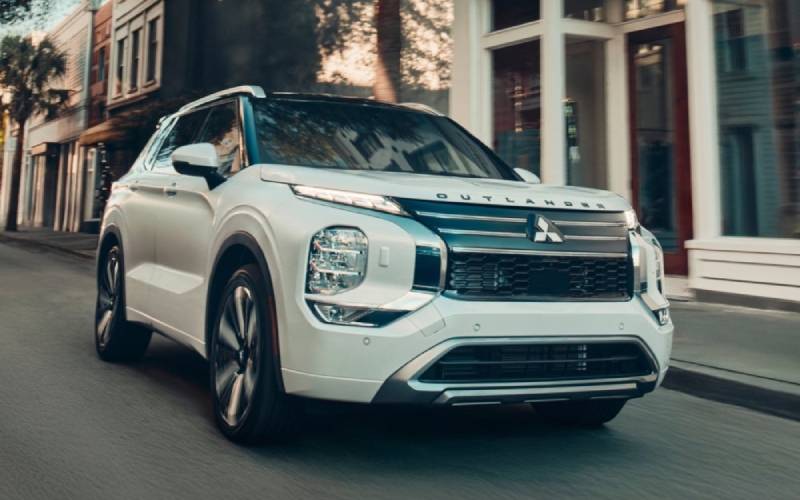
White Bear Mitsubishi – How do I set up Apple CarPlay and Android Auto in a 2026 Outlander near Saint Paul, MN?
The 2026 Mitsubishi Outlander makes it easy to bring your favorite apps and contacts on every drive around Saint Paul, MN, thanks to standard wireless Apple CarPlay® and Android Auto™. If you’re getting ready for a commute down I-94, a Target run off University Avenue, or a family trip toward Como Park, pairing your phone to the Outlander’s 12.3″ Smartphone-link Display Audio with Navigation helps you navigate, text, and stream hands-free in just a few minutes.
Below, our White Bear Mitsubishi team outlines step-by-step setup for both Apple and Android devices, plus helpful tips that match how people actually drive and park around the Twin Cities. Whether you prefer Apple Maps, Google Maps, Waze, Spotify, Audible, or podcasts, you’ll be up and running quickly—and safely within Minnesota’s hands-free law.
Why connect your phone in the 2026 Outlander
Every 2026 Outlander comes ready for wireless Apple CarPlay® and Android Auto™, so you can leave the cables in your bag. The vivid, wide 12.3″ Smartphone-link Display Audio with Navigation puts maps, calls, and media front and center, and voice assistants let you keep your eyes on Kellogg or 35E traffic while you handle the details. If you select a trim with Dynamic Sound Yamaha® Premium or Ultimate, audio is tuned for clarity at every seat—plus Speed Compensated Volume helps maintain consistent sound as road noise changes on I-494 or Highway 61.
Because the Outlander integrates Bluetooth®, Wi-Fi, and USB options, you can choose the connection type that fits your day. Wireless is perfect for daily use and short hops, while a USB cable can be handy for longer drives if you want faster battery charging.
Set up wireless Apple CarPlay® on iPhone
Most iPhone models running current iOS work seamlessly with wireless Apple CarPlay®. You can connect from the driveway or the White Bear Mitsubishi lot in just a few steps.
- Prep your iPhone: Turn on Bluetooth® and Wi-Fi. Make sure Siri is enabled.
- Start your Outlander: Park safely, start the vehicle, and make sure you’re in Park.
- Open the Outlander’s smartphone menu: On the 12.3″ display, tap Smartphone, then choose Apple CarPlay®.
- Pair via Bluetooth®: Select your Outlander when it appears on your iPhone’s Bluetooth® list. Confirm the pairing code on both screens.
- Allow CarPlay® permissions: On your iPhone, tap Allow to enable CarPlay® and Allow When Locked if prompted.
- Finish and personalize: Apple CarPlay® will launch on the Outlander screen. Arrange your preferred apps and set your default navigation app in your iPhone settings if desired.
If your iPhone does not prompt for wireless pairing, plug a certified Lightning-to-USB cable into the Outlander’s USB port for the initial handshake. After that first connection, you can typically use CarPlay® wirelessly.
Set up wireless Android Auto™ on Android phones
Wireless Android Auto™ typically requires Android 11 or newer with the latest Google app updates. Most popular devices from Google, Samsung, and other major brands support it.
- Prep your Android phone: Turn on Bluetooth® and Wi-Fi. Update Android Auto™ and Google Play Services.
- Start your Outlander: Park safely, start the vehicle, and confirm you’re in Park.
- Open the Outlander’s smartphone menu: Tap Smartphone, then choose Android Auto™.
- Pair via Bluetooth®: On your phone, select your Outlander from the Bluetooth® device list and confirm the pairing code.
- Grant permissions: Accept any on-screen prompts for contacts, messages, and notifications so Android Auto™ can function fully.
- Complete setup: Android Auto™ will launch on the Outlander display. Set your default navigation and music apps in the Android Auto™ settings.
For phones without wireless support, connect with a high-quality USB-C cable to use Android Auto™. Once connected, you can keep the cable in the console for longer trips or charge breaks on cold mornings.
Troubleshooting and pro tips for Saint Paul drives
If connection stalls or your screen doesn’t populate on the first try, a few quick checks usually solve it. These tips are based on the way local drivers use Outlander tech for everyday errands, downtown parking, and weekend escapes along the St. Croix.
- Verify settings: Confirm Bluetooth® and Wi-Fi are on and airplane mode is off.
- Reboot quickly: Restart your phone and cycle the Outlander ignition off and on while parked.
- Try USB once: Use a known-good cable for the initial handshake, then switch back to wireless.
- Limit duplicates: If you’ve paired your phone to multiple vehicles or headsets, remove old profiles you no longer use.
- Prioritize audio: In CarPlay® or Android Auto™ settings, choose your primary music and maps apps to streamline voice commands when traffic picks up near Xcel Energy Center.
If you’d like us to walk you through setup, we’re happy to pair your device during your test drive or delivery appointment. We can also show you how Apple CarPlay® or Android Auto™ works alongside built-in navigation and MI-PILOT Assist™ features for confident, calm commuting.
Make the most of the Outlander’s screen, sound, and smart features
Outlander’s wide display and thoughtful steering-wheel controls make smartphone integration feel natural. Use voice to handle messages and calls, then let your preferred navigation app manage lane guidance for the I-94/35E splits. If your Outlander includes Dynamic Sound Yamaha® Premium or Ultimate, try a high-resolution playlist—vocals and midrange instruments come through with impressive clarity, and the system’s Speed Compensated Volume keeps your music leveled as ambient noise changes.
For families, wireless setup simplifies life at school pickup near Highland Park or Mac-Groveland—no cable handoffs needed. And because Android Auto™ and Apple CarPlay® place your most-used apps just a tap away, switching between a grocery list and turn-by-turn directions becomes second nature.
It’s also worth exploring Mitsubishi Connect with Safeguard And Remote Services. While separate from Apple CarPlay® and Android Auto™, it complements smartphone life with helpful features in the companion mobile app—like remote start prompts, vehicle status checks, and more, depending on enrollment.
Finally, remember Minnesota’s hands-free law. With Apple CarPlay® and Android Auto™ running and voice assistants active, you can stay legal and focused while you navigate side streets in Summit-University or time lights on Snelling.
Frequently Asked Questions:
Is wireless Apple CarPlay® and Android Auto™ standard on the 2026 Outlander?
Yes. Wireless Apple CarPlay® and Android Auto™ are standard across the 2026 Outlander lineup, working through the 12.3″ Smartphone-link Display Audio with Navigation.
Do I still need a USB cable if wireless is standard?
Not for daily use. A high-quality cable can help with a first-time handshake or faster charging on longer trips. After that, you can run CarPlay® or Android Auto™ wirelessly.
Will Apple CarPlay® or Android Auto™ interfere with built-in navigation?
No. You can use the Outlander’s built-in navigation or your preferred app. Many drivers choose Apple Maps, Google Maps, or Waze for live traffic on I-94 or Highway 36 and switch to the built-in system where it fits their routine.
Can multiple drivers pair their phones to one Outlander?
Yes. You can store several devices. The Outlander typically connects to the last active phone. If multiple paired phones are present, select the device you want from the Bluetooth® list on the display.
Why won’t my Android phone connect wirelessly?
Check your Android version—wireless Android Auto™ generally requires Android 11 or newer. Update Android Auto™ and Google Play Services, then try again. If needed, use a USB-C cable for a reliable connection.
Does voice control work through the steering-wheel button?
Yes. Use the steering-wheel voice button to launch Siri or Google Assistant, then make calls, dictate texts, or set destinations without taking your hands off the wheel.
When you’re ready, our team can pair your device in a few minutes and show you how to customize your home screen, add or rearrange apps, and set a preferred navigation option. We can also walk you through simple audio tweaks so your playlists sound fantastic through Dynamic Sound Yamaha® Premium or Ultimate.
If you’re cross-shopping or trading in, we can demonstrate Apple CarPlay® and Android Auto™ side by side, answer questions about multi-driver households, and help you test the voice controls you’ll use most during Saint Paul commutes.
From there, it’s easy to see how well the 2026 Outlander’s tech fits daily life—whether you’re hopping between errands on Grand Avenue, routing around game-night traffic, or planning a weekend up to White Bear Lake. Seamless smartphone connection keeps your drive organized, your cabin uncluttered, and your attention where it belongs—on the road.
Have more questions about setting up Apple CarPlay® or Android Auto™? Visit us at White Bear Mitsubishi, 3400 Hwy 61 N in White Bear Lake, or call 651-483-9106. We’ll help you pair your phone, personalize your settings, and make sure your 2026 Mitsubishi Outlander is ready to roll for your next Saint Paul, MN drive.

0 comment(s) so far on How do I set up Apple CarPlay and Android Auto in a 2026 Outlander?